Share an Internal Report
Internal Reports can be shared with other users in your Loyalty account. When you share an Internal Report, you can specify the permission levels that user has when they access the Internal Report. Note that these share settings are unrelated to the privileges granted by the user's Role.
This article assumes that you have already created an Internal Report, either from scratch, or by copying an existing Internal Report. See Create an Internal Report for more information. This article also assumes that you have navigated to the desired Internal Report.
To share an Internal Report:
-
Select Analytics from the top navigation bar, then select Settings > Dashboards from the side navigation menu. The Dashboards screen is displayed and populated with all the standard and custom Dashboards defined in your Loyalty account.
-
Click the name of any Analytics Dashboard. It doesn't matter which one, only that the selected Analytics Dashboard has its Edit Mode set to Admin.
Note: If you need to change the Edit Mode for this Analytics Dashboard, select Edit from the Action drop-down menu in the top-right. The Edit Dashboard pop-up window is displayed. From the Edit Mode drop-down menu, select Admin. Click Save.
-
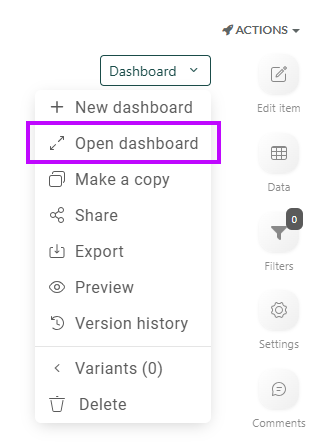
From the Dashboard drop-down menu near the top-right corner, select Open Dashboard. The Open pop-up window is displayed and populated with all Internal Reports that you have created, or that have been shared with you.
-
Click the desired Internal Report that you want to share. The report canvas is populated with the contents of the selected Internal Report.
-
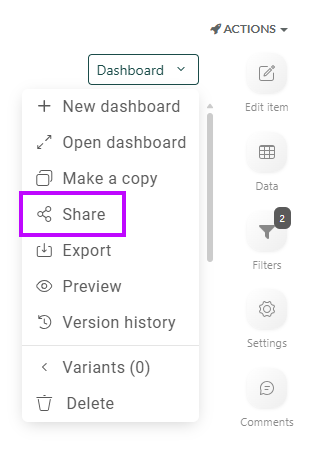
From the Dashboard drop-down menu in the top-right corner of the screen, select Share. The Share Your Dashboard pop-up window is displayed.
-
In the Add Users or Groups field, search for and select the desired user. The platform adds them to the Internal Report, with a default permission setting of use.
-
Optionally, from the drop-down menu next to the user's name, select a different permission setting. The available options are: view, use, edit, and owner.
-
Repeat the above steps to share the Internal Report with additional users.
-
When finished, close the pop-up window.